
Open the device list
Open your FRITZ!Box user interface and go to the overview of connected devices.
Result: You can see which devices are currently or recently connected to your Wi-Fi.CHECK WI-FI DEVICES
An unfamiliar device in your Wi-Fi list is not automatically an attack. Check your FRITZ!Box first, identify the devices and learn how RouterGuard can support you.
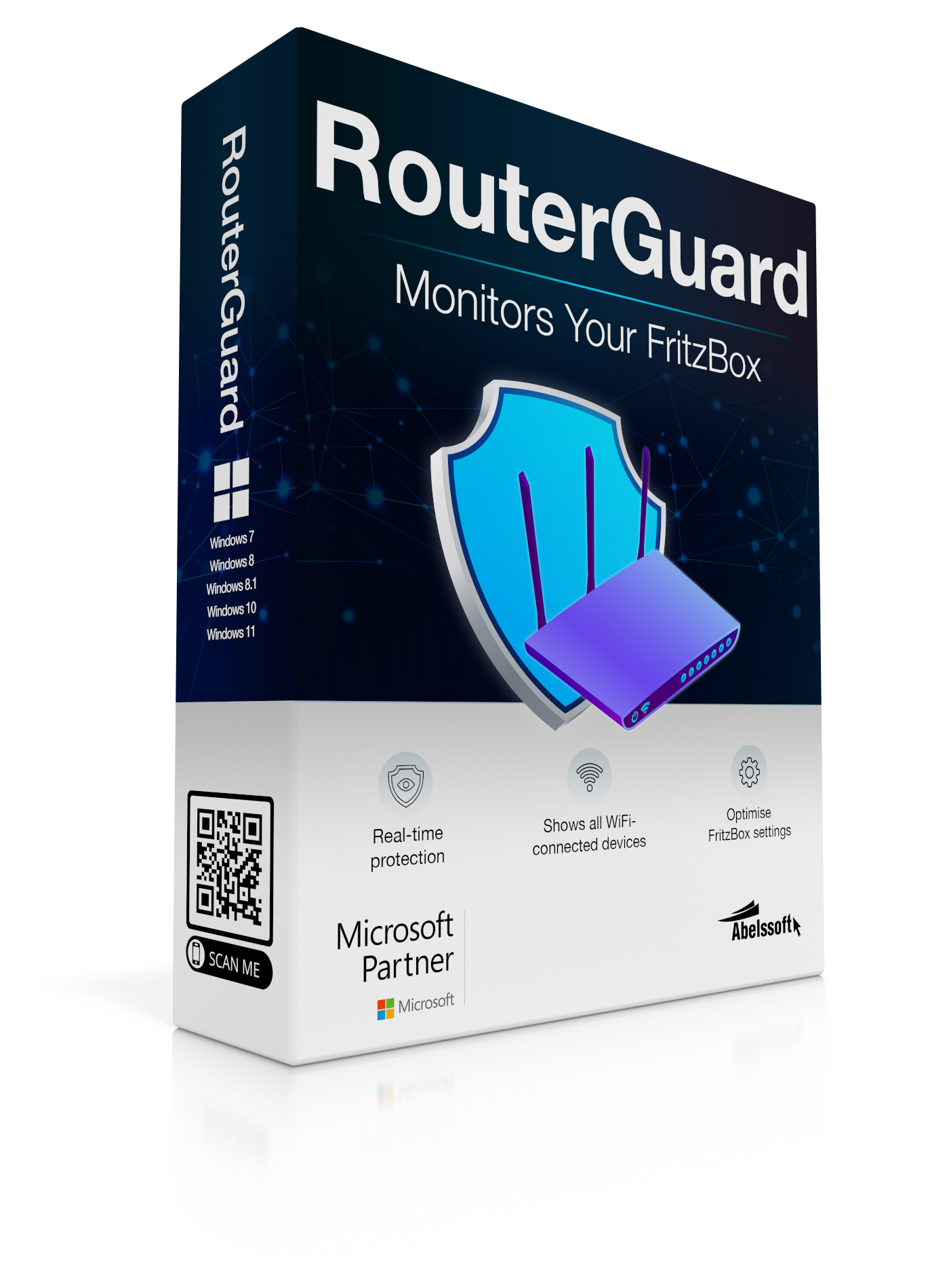
THE SHORT ANSWER
Your Wi-Fi list can include your own devices, guests or devices whose names you do not immediately recognize. Examples include smartphones, TVs, printers, repeaters and smart-home devices.
Before assuming an attack, identify the entries one by one. If a device still cannot be explained after checking, take a closer look at your FRITZ!Box security settings.
STEP BY STEP
The exact labels may vary depending on your FRITZ!OS version. The principle is the same: open the device list, identify the entries and check your security settings if you have a justified concern.
Open your FRITZ!Box user interface and go to the overview of connected devices.
Result: You can see which devices are currently or recently connected to your Wi-Fi.Check names, manufacturers and connection details. Remember to include repeaters, printers, TVs, consoles, smart-home devices and guests.
Result: Most unfamiliar entries can be explained once you check them carefully.If a device does not belong to your household, check your Wi-Fi password, updates and other relevant FRITZ!Box settings.
Important: An unfamiliar name alone does not prove unauthorized access.After making a change, check the device list again to see whether the situation is resolved.
If problems continue, consult your router or internet provider documentation.FRITZ!BOX SECURITY
Router security does not depend on one setting alone. Use this checklist to review your Wi-Fi security, organize the points that matter in your situation and keep your FRITZ!Box up to date.
Use a strong Wi-Fi password and change it if you have a justified concern.
Check whether your FRITZ!Box is running a current FRITZ!OS version.
Review the relevant settings on your FRITZ!Box and use the manufacturer's explanations.
Separate guests and devices that do not need access to your internal home network where your configuration supports it.
AN ADDITIONAL OVERVIEW
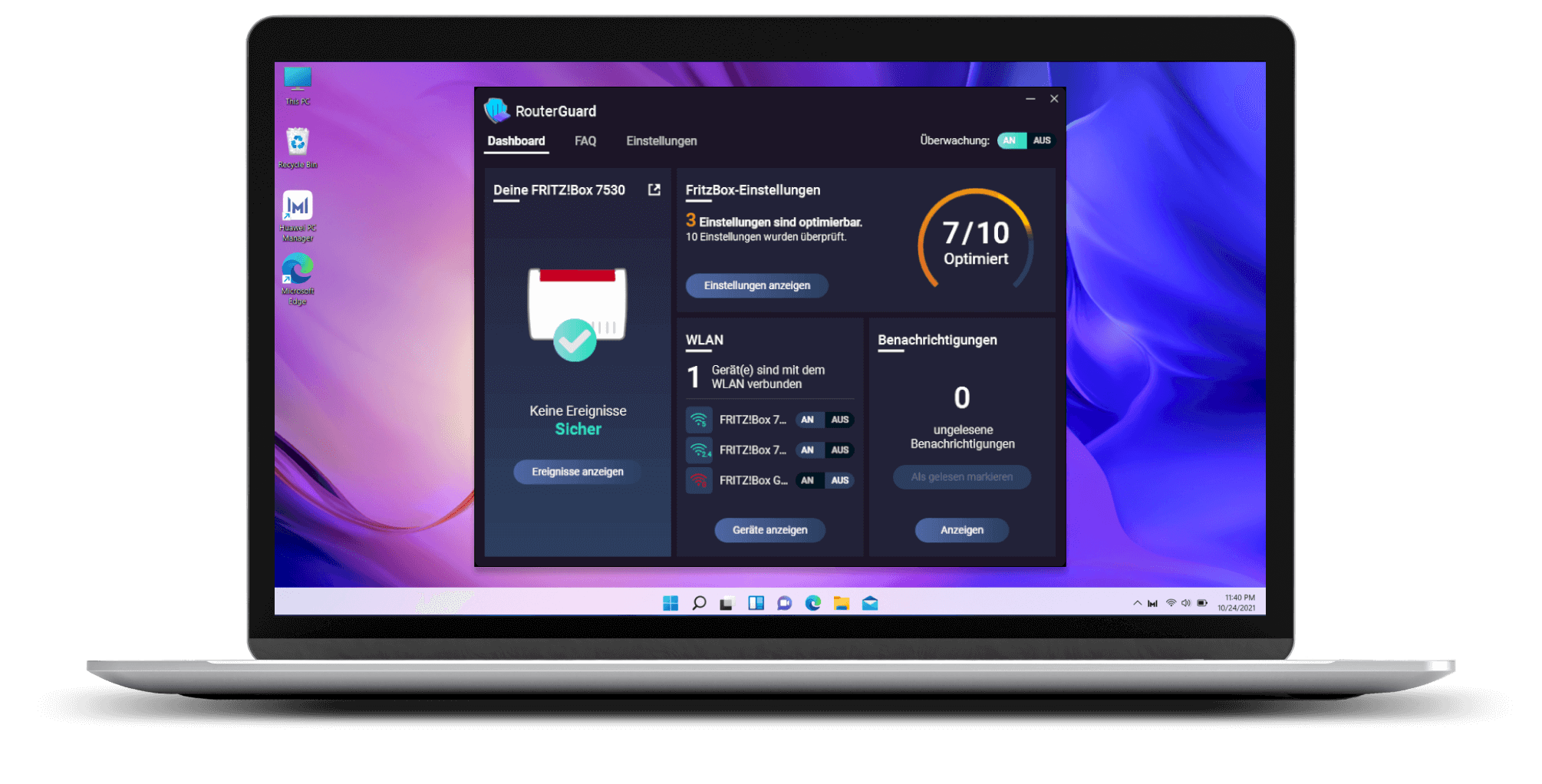
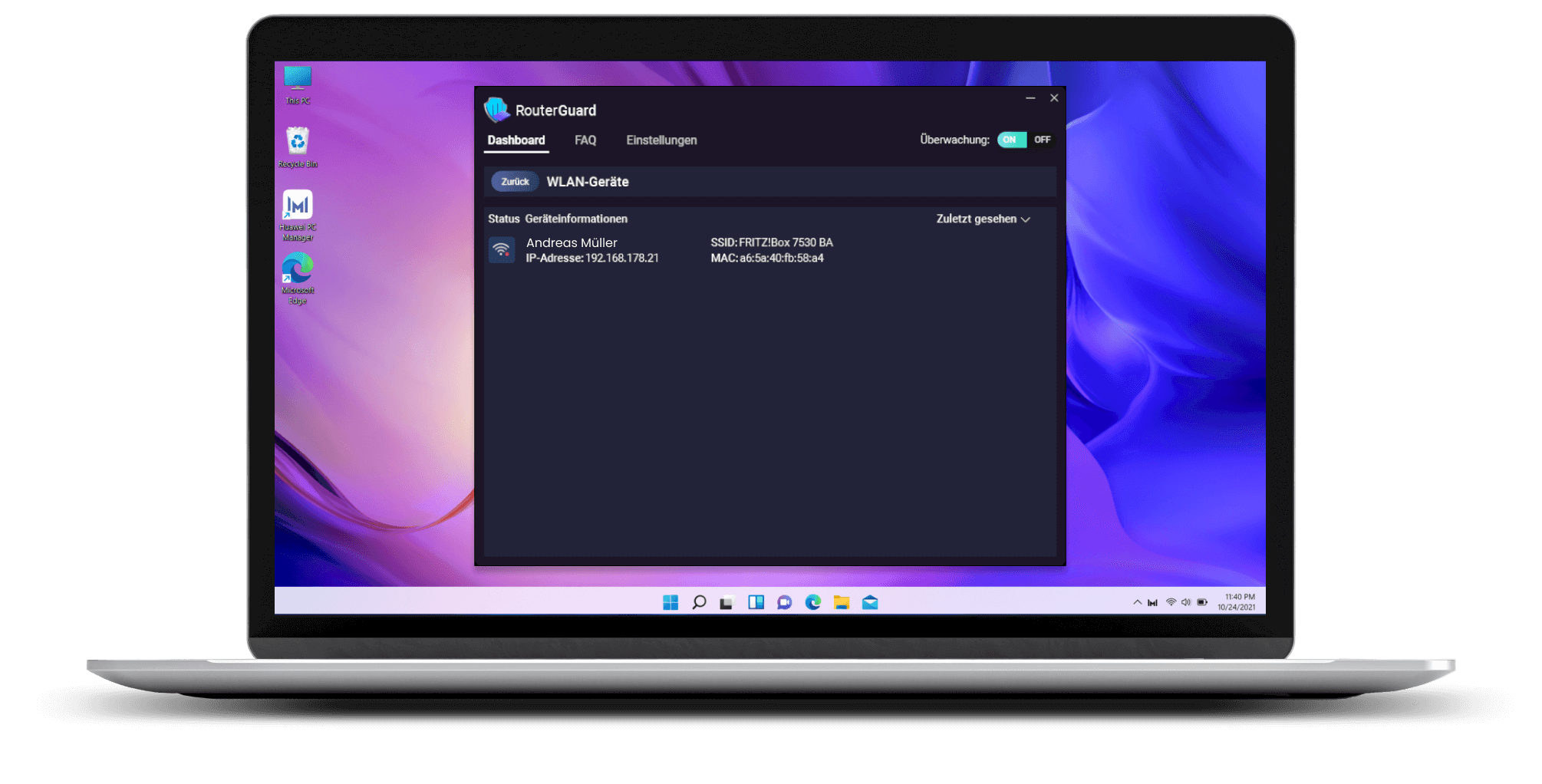
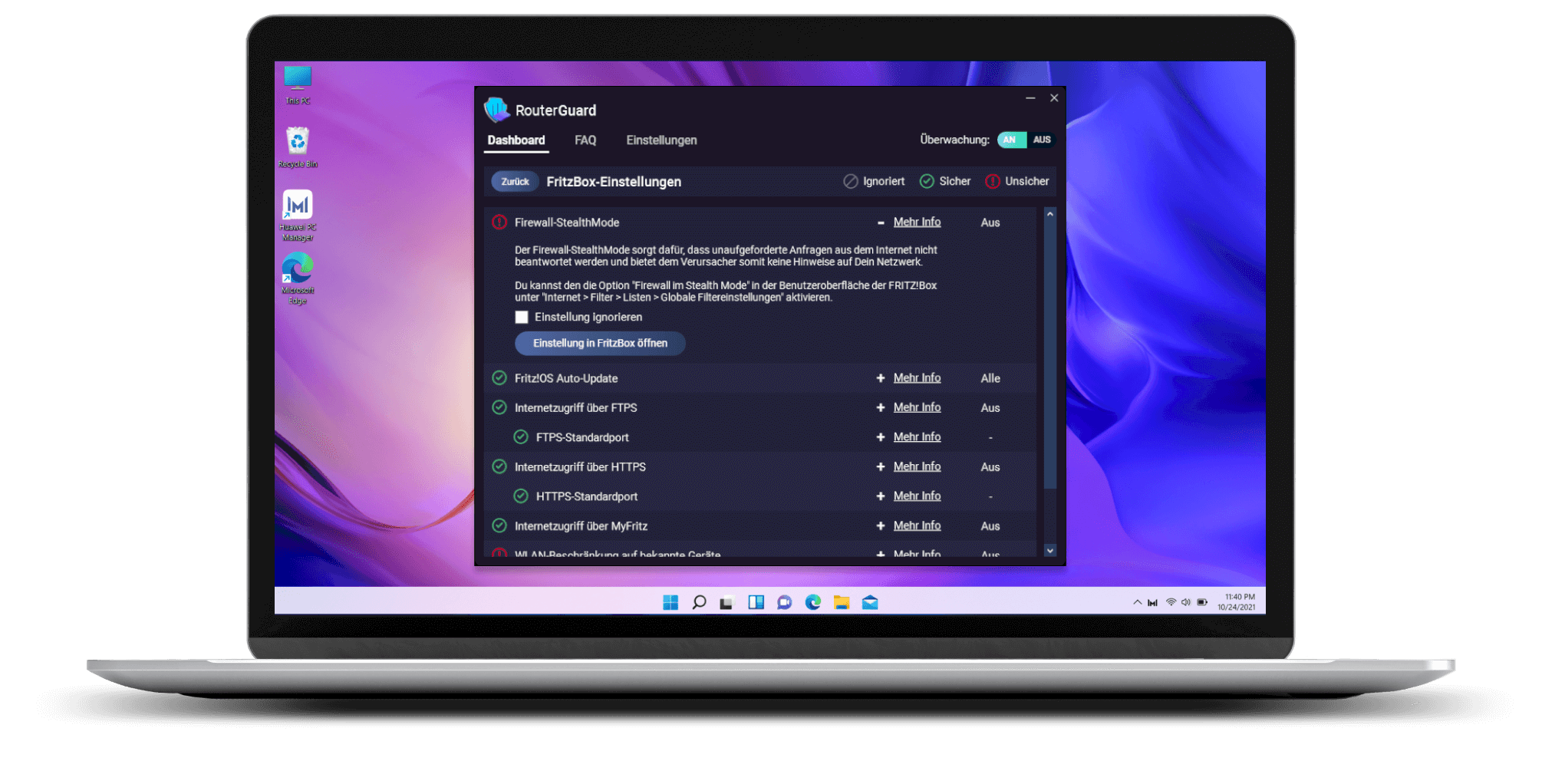
RouterGuard was developed specifically for FRITZ!Box devices. The application shows connected Wi-Fi devices, the security status of your FRITZ!Box, guidance on selected security settings and alerts for suspicious events.
Important: RouterGuard does not replace FRITZ!OS updates, a secure password or careful identification of the devices in your list. The available support depends on your FRITZ!Box and FRITZ!OS.
Add RouterGuard to cartA LOOK AT THE APPLICATION
The product views show how RouterGuard brings together security status, devices and FRITZ!Box settings.
ROUTERGUARD FOR WINDOWS
For compatible FRITZ!Box setups on Windows. The purchase button takes you directly to the cart.
FAQ
No. An unfamiliar device could be a smartphone, TV, printer, repeater, smart-home device or guest device. Identify the devices first and take further security steps if you have a justified concern.
Open your FRITZ!Box device list and identify the devices by name, manufacturer and connection details. The exact menu label may vary depending on your FRITZ!OS version.
No. RouterGuard was developed for FRITZ!Box devices and requires at least FRITZ!OS 7.29. Special configurations may be exceptions.
RouterGuard supports Windows 7, Windows 8, Windows 8.1, Windows 10 and Windows 11.
Yes. RouterGuard is available as a trial version. It can be used for 30 days and includes a purchase dialog and advertising in the application.
* The trial version can be used for 30 days and includes a purchase dialog and advertising in the application.
NEXT STEP
If you want a clearer way to check your FRITZ!Box, learn more about RouterGuard and the current trial version.